
YouTube Channel Comparison
Compare two YouTube channels side by side using subscribers, views, uploads, recent activity, content mix, and estimated earnings.
If 30-day view snapshots exist, earnings use the true monthly delta. Otherwise we use a conservative fallback until history builds.
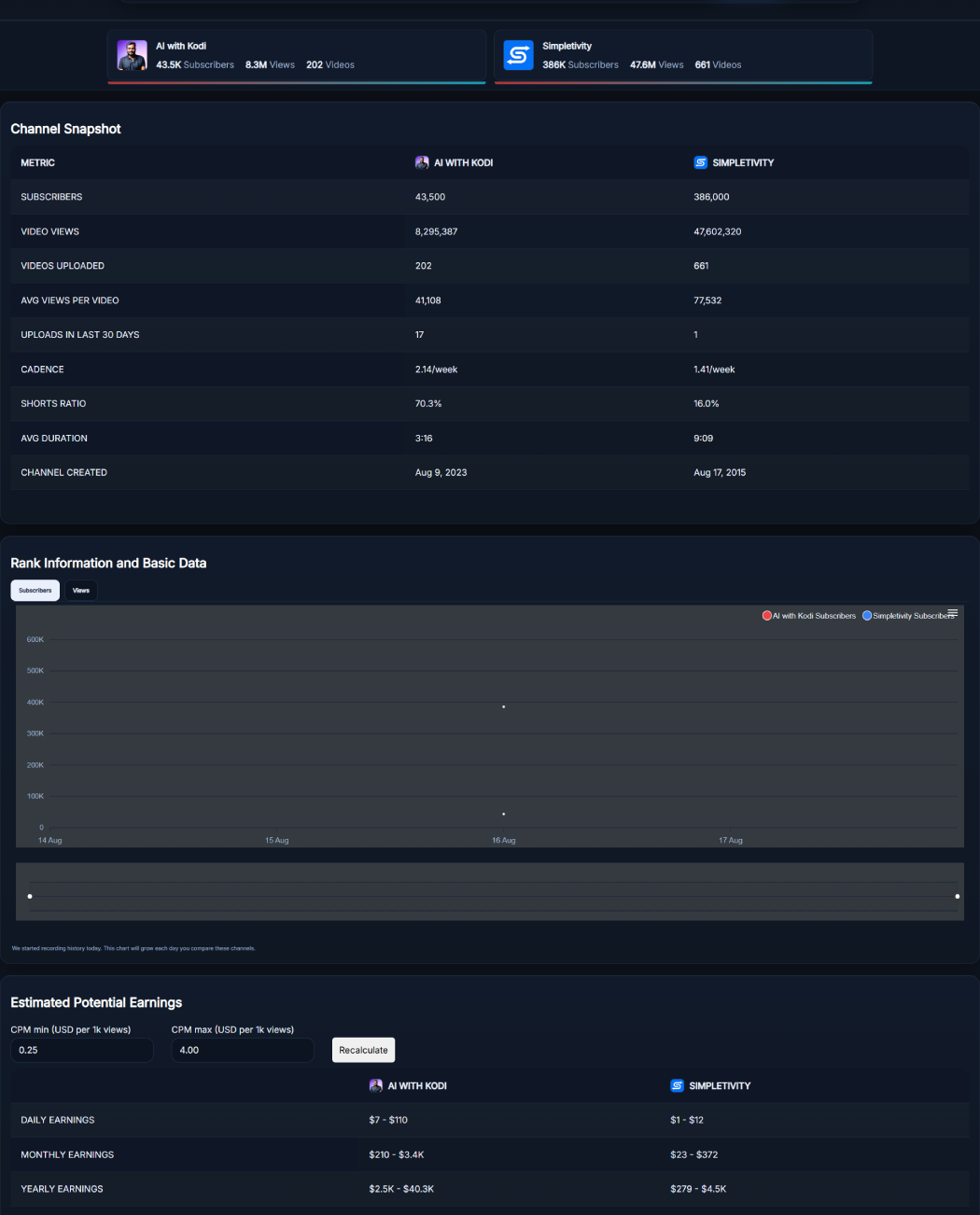
We started recording history today. This chart will grow each day you compare these channels.
The YouTube Channel Comparison tool compares two public YouTube channels side by side. Enter two channel handles or channel URLs to compare subscribers, total views, uploads, recent activity, Shorts ratio, average duration, channel age, and other useful metrics from one dashboard.
What Does the YouTube Channel Comparison Tool Show?
Instead of opening two channel pages and manually comparing numbers, the tool places both channels in the same view. After the analysis finishes, you get summary cards followed by a detailed Channel Snapshot table.
The snapshot includes subscribers, video views, videos uploaded, average views per video, uploads in the last 30 days, weekly cadence, Shorts ratio, average duration, and channel creation date. You can also switch the Basic Data Comparison chart between subscribers and views and explore CPM-based potential earnings estimates.
Who Is This Tool For?
- YouTube creators: Compare your public channel statistics with another creator in your niche.
- Channel managers: Put channel size, recent publishing activity, and content mix into one comparison.
- Marketing teams: Review publicly available channel metrics before doing deeper creator research.
- Researchers: Compare channel scale, publishing frequency, Shorts mix, and channel age without building a spreadsheet first.
- Creator agencies: Quickly screen two public channels before moving to more detailed audience and campaign analysis.
Key Features of YouTube Channel Comparison
- Two-channel comparison: Enter two YouTube handles or channel URLs and analyze both channels together.
- Channel summary cards: See each channel's name, subscribers, total views, and uploaded video count at the top of the results.
- Detailed Channel Snapshot: Compare subscribers, views, uploads, average views, recent uploads, cadence, Shorts ratio, average duration, and creation date row by row.
- Recent content metrics: Use uploads in the last 30 days, weekly cadence, Shorts ratio, and average duration to add context beyond lifetime totals.
- Subscriber and views chart: Toggle the Basic Data Comparison between subscribers and views. The chart menu also provides SVG, PNG, and CSV download options.
- Potential earnings estimates: Set minimum and maximum CPM assumptions and recalculate daily, monthly, and yearly earnings ranges for both channels.
How to Compare Two YouTube Channels
- Enter the first channel: Paste its @handle or full YouTube channel URL into the first field.
- Enter the second channel: Add another @handle or channel URL to the second field and click Analyze.
- Review the Channel Snapshot: Compare subscribers, views, uploads, recent activity, cadence, Shorts ratio, average duration, and creation date.
- Use the comparison chart: Switch between Subscribers and Views. Use the chart menu if you want to download the visualization or its data.
- Test an earnings scenario: Adjust the CPM minimum and maximum values and click Recalculate. Use Clear when you want to start a new channel comparison.
When Is Comparing YouTube Channels Useful?
Competitor research is an obvious use. A much larger channel may dominate on total subscribers and views, while another channel may publish more frequently or use a very different mix of Shorts and longer videos. Looking at these figures together gives you more context than subscriber count alone.
The tool is also useful when researching potential creator partners. Public statistics cannot tell you everything about audience quality or campaign performance, but channel size, publishing activity, content mix, and average views give you useful information for an initial comparison.
If engagement is the next thing you want to investigate, run the relevant channel figures through the YouTube Engagement Rate Calculator. For separate revenue scenarios, the YouTube Money Calculator provides another way to explore potential earnings.
Benefits of Comparing Channels Side by Side
- See important differences faster: Both channels appear in the same table instead of being spread across separate tabs.
- Separate scale from recent activity: Lifetime subscribers and views can be viewed alongside uploads from the last 30 days and weekly cadence.
- Compare content mix: Shorts ratio and average duration provide additional context about the type of content included in the analysis.
- Explore earnings scenarios: Adjustable CPM inputs let you see how different assumptions affect the estimated earnings range.
- Save comparison data: Download the chart as SVG or PNG, or use the available CSV download when you need its chart data elsewhere.
Example of a YouTube Channel Comparison
Imagine Channel A has more subscribers and lifetime views, while Channel B has uploaded more videos during the last 30 days. The comparison does not automatically mean one channel is better. Instead, the YouTube Channel Comparison gives you different pieces of context. Lifetime numbers show overall scale, while recent uploads and cadence show current publishing activity. Shorts ratio and average duration add another layer by showing differences in content mix. You can then decide which metrics matter for the question you are researching.
Tips for Reading Channel Comparison Data
- Compare relevant channels: Channels covering similar audiences or topics usually provide more useful benchmarks than completely unrelated creators.
- Remember that subscriber counts are rounded: YouTube reports public subscriber statistics with rounding, so treat small subscriber differences carefully.
- Separate lifetime and recent metrics: Total views reflect accumulated channel scale, while recent uploads and cadence focus more on current publishing activity.
- Do not treat Shorts ratio as a quality score: It describes content mix. A higher or lower Shorts ratio does not automatically make one strategy better.
- Treat earnings as estimates: CPM-based projections are scenarios, not verified creator income. Actual YouTube revenue depends on monetization and factors that public channel statistics alone cannot reveal.
Frequently Asked Questions
What statistics does the YouTube Channel Comparison tool compare?
It compares subscribers, total video views, videos uploaded, average views per video, uploads in the last 30 days, weekly cadence, Shorts ratio, average duration, and channel creation date. It also provides a subscribers or views chart and potential earnings estimates.
What can I enter in the two channel fields?
Use a YouTube @handle or a channel URL for each channel. Enter one channel in each field and click Analyze to load the side-by-side comparison.
Does the chart show historical YouTube channel growth?
No. The current chart is a Basic Data Comparison that lets you switch between the subscribers and views of the two analyzed channels. It should not be treated as a historical growth timeline.
Can I download the comparison chart?
Yes. The chart menu provides options to download SVG, PNG, or CSV. These options apply to the comparison chart rather than exporting the entire page as a report.
How do the estimated earnings work?
You enter a minimum and maximum CPM and the tool calculates potential daily, monthly, and yearly earnings ranges. When 30-day view snapshots are available, the estimator can use the monthly view change. Otherwise, the tool may use a fallback until enough history is available. Treat the results as estimates rather than actual channel income.
Do I need to sign in to YouTube?
No. You can compare the available public channel statistics without signing in to a YouTube account or connecting either channel.
How can I compare two YouTube channels?
Enter the @handle or channel URL for each YouTube channel and run the analysis. Compare lifetime statistics such as subscribers and views alongside recent activity, publishing cadence, content mix, and other available metrics.
Which metrics should I look at when comparing YouTube channels?
Start with subscribers and total views for overall scale, then add videos uploaded, recent uploads, cadence, average views, Shorts ratio, average duration, and channel age for more context. The most useful metrics depend on what you are trying to compare.
Why can a YouTube subscriber count be rounded?
YouTube rounds public channel subscriber statistics, so the number available through public data may not represent every individual subscriber. This matters most when comparing channels with very similar subscriber totals.
Is the bigger YouTube channel always performing better?
Not necessarily. A larger subscriber or lifetime view count shows scale, but it does not answer every performance question. Recent publishing activity, average views, content mix, channel age, and other metrics can provide additional context.