
YouTube Hashtag Extractor
Paste a YouTube video URL to extract hashtags from its public description, review each result, and copy the complete set in one click.
Extracting hashtags
This tool just saved you time!
This tool is completely free — a small coffee helps keep it running for everyone 🙏
No subscriptions. No paywalls. Just coffee if you feel like it.
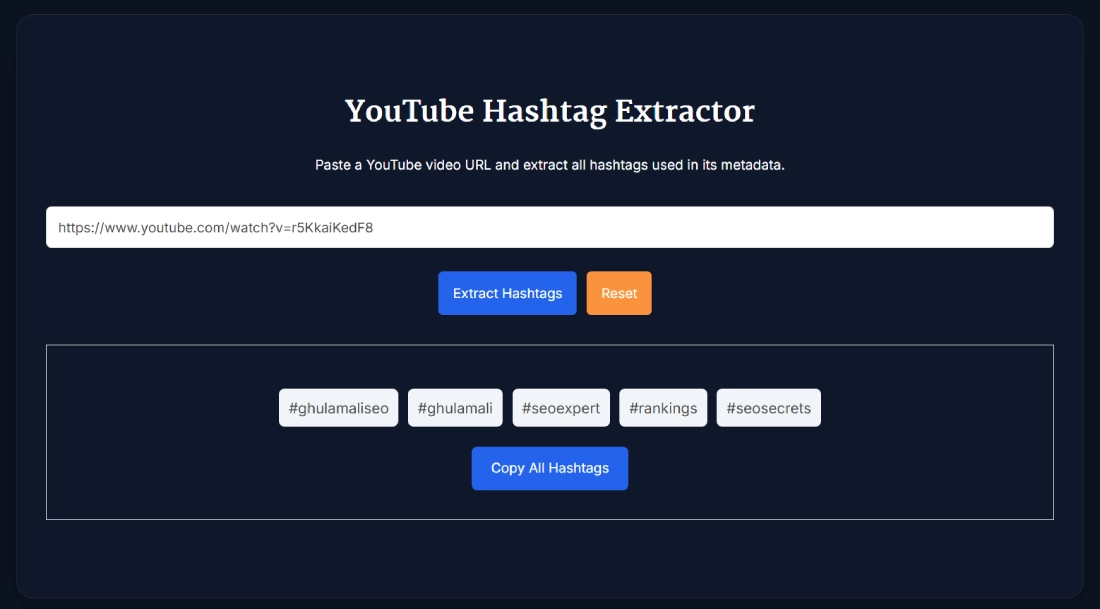
The YouTube Hashtag Extractor retrieves hashtags found in a video's public description. Paste a YouTube watch, Shorts, youtu.be or embed URL, select Extract Hashtags, and copy the complete result as one space-separated line. No login is required.
The tool processes one video at a time. It does not generate new hashtag suggestions, measure hashtag popularity or reliably return hashtags that appear only in the video title.
What the YouTube Hashtag Extractor Does
The extractor checks the selected video's public description and displays every hashtag it can retrieve as a separate item. The result keeps the # symbol, spelling and capitalisation returned for each hashtag.
- Extract Hashtags: Retrieves hashtags from one public YouTube video description.
- Review Individual Results: Displays each hashtag separately so the list is easy to scan.
- Copy All Hashtags: Copies the complete result as a single space-separated line.
- Reset: Clears the URL and removes the previous result.
- Clear Error Messages: Identifies invalid input and YouTube links that cannot be processed.
This is an extractor, not a YouTube hashtag generator. It shows what was found in the selected description without creating additional variations or predicting which hashtags will perform well.
How to Extract Hashtags from a YouTube Video
- Copy the video URL: Open the YouTube video or Short you want to check and copy its link.
- Paste the URL: Add the link to the input field above.
- Select Extract Hashtags: The tool retrieves the public description and checks it for hashtags.
- Review the result: Confirm that the returned hashtags are relevant to the selected video.
- Copy the complete set: Select Copy All Hashtags to place the results on your clipboard.
- Check another video: Select Reset before pasting the next URL.
Supported YouTube URL Formats
Live testing confirmed that the YouTube hashtag extractor accepts these common video-link formats:
- Standard watch URL: youtube.com/watch?v=VIDEO_ID
- Shortened URL: youtu.be/VIDEO_ID
- YouTube Shorts URL: youtube.com/shorts/VIDEO_ID
- Embed URL: youtube.com/embed/VIDEO_ID
A valid YouTube domain is not enough by itself. Channel pages, playlist-only links and other non-video URLs can return an error because the tool requires an individual video ID.
What “No Hashtags Found” Means
A no-hashtag result means the extractor did not find hashtags in the public description it retrieved. It does not always mean that the entire YouTube page contains no hashtags.
During live testing, a video with hashtags in its title but none detected in its description returned No hashtags found in this video. Check the visible title manually if you need to capture title-only hashtags.
The same message may also appear when a description genuinely contains no hashtags. Private, deleted, restricted or otherwise unavailable videos may return an error instead of a usable result.
YouTube Hashtags and Video Tags Are Different
A YouTube hashtag begins with the # symbol and can appear visibly in a video's title or description. Viewers can select a hashtag to open a page containing other videos associated with it.
Video tags are hidden descriptive keywords added through YouTube Studio. They are not the same as visible hashtags, and this tool does not extract them. YouTube states that title, thumbnail and description information is more important for discovery, while video tags usually play only a limited role except for commonly misspelled terms. Read YouTube's official video-tag guidance for details.
If you need fresh keyword ideas rather than hashtags extracted from an existing description, use the Free YouTube Tag Generator Tool. Treat its suggestions as ideas to review, not guaranteed ranking keywords.
How Hashtags Work on YouTube
YouTube allows hashtags in video titles and descriptions. Hashtags cannot contain spaces, so a phrase such as “video editing” must be written as one hashtag, for example #VideoEditing.
According to YouTube's hashtag guidance, up to three hashtags from a description may appear near the video title. The remaining hashtags can still appear inside the description.
YouTube also states that when a video or playlist has more than 60 hashtags, all hashtags on that content are ignored. Unrelated or misleading hashtags can create policy problems, so relevance matters more than filling the description with as many hashtags as possible.
How to Use Extracted Hashtags Responsibly
Extracted hashtags are useful for research, but another video's list should not be treated as a ready-made strategy. The extractor does not provide search volume, competition, trend history or evidence that a hashtag caused the video's performance.
- Keep only hashtags that accurately describe your own video.
- Check several relevant videos before assuming a hashtag is common in the niche.
- Remove brand names, campaign names or creator-specific hashtags that do not belong to your content.
- Do not copy an entire list simply because the source video has many views.
- Read the full description to understand the context in which each hashtag was used.
After selecting your hashtags, the YouTube Description Length Checker can help you review the completed description without implying that a particular length guarantees better performance.
Current Tool Limitations
- Only one YouTube video URL can be processed at a time.
- The tool does not support bulk URL lists.
- There is no CSV, TXT or spreadsheet export.
- It does not generate new hashtags or recommend alternatives.
- It does not show hashtag search volume, popularity or ranking difficulty.
- Hashtags found only in a video title may not be returned.
- It does not extract hidden YouTube video tags.
- Private, deleted, restricted or unavailable videos may not be processed.
FAQ
What does the YouTube Hashtag Extractor extract?
The YouTube Hashtag Extractor retrieves hashtags found in the public description of one YouTube video. It displays each hashtag separately and lets you copy the complete set.
Which YouTube URL formats are supported?
Live testing confirmed support for standard watch URLs, youtu.be links, YouTube Shorts URLs and embed URLs. The link must identify an individual YouTube video.
Does the tool work with YouTube Shorts?
Yes. The tool accepts YouTube Shorts URLs. It checks the Short's public description for hashtags, so hashtags that appear only in the title may not be returned.
Can I copy all extracted hashtags at once?
Yes. Select Copy All Hashtags to copy the complete result as one space-separated line, including the # symbol before every hashtag.
Why does the tool say no hashtags were found?
The retrieved public description may not contain any hashtags. The same result can appear when hashtags exist only in the video title because title-only hashtags are not reliably extracted.
Can I extract hashtags from several videos at once?
No. The current tool processes one video URL at a time. Select Reset after checking a video, then paste the next URL.
Does this tool extract hidden YouTube video tags?
No. It extracts visible hashtags beginning with # from the public description. Hidden video tags added through YouTube Studio are different metadata and are not included.
What is the difference between a YouTube hashtag and a video tag?
A hashtag begins with #, appears visibly in a title or description and can link to hashtag results. A video tag is a hidden keyword entered through YouTube Studio and does not appear as a clickable hashtag.
How many hashtags can I add to a YouTube video?
YouTube says that if a video has more than 60 hashtags, all hashtags on that content are ignored. There is no single ideal number for every video, so include only hashtags that accurately describe the content.
Do YouTube hashtags improve video rankings?
Hashtags can connect a video with hashtag search and browsing pages, but they do not guarantee higher rankings or more views. This extractor cannot determine whether a hashtag affected another video's performance.