
The YouTube Category Checker finds the category associated with a public YouTube video using its URL. Paste a video link, click Check Category, and the tool shows whether the video is categorized under Gaming, Education, Music, Entertainment, Science & Technology, People & Blogs, or another available YouTube video category.
It also displays useful video information including the title, channel name, description, tags, upload date, duration, views, likes, and comments when those details are available. This makes it useful when you need the category actually associated with a video rather than guessing from its title, thumbnail, or topic.
What Is a YouTube Category Checker?
A YouTube category checker is a tool that identifies the broad category associated with an individual YouTube video. Categories can include Gaming, Education, Music, Entertainment, Sports, People & Blogs, Science & Technology, and other classifications.
YouTube's video data includes a category ID associated with the video. SanishTech's YouTube Video Category Finder retrieves the available video information and presents the corresponding category in an easier-to-read format.
The tool does not analyze the title and invent a category or predict which category would be best. It checks the category already associated with the video.
How to Find the Category of a YouTube Video
You do not need to inspect YouTube page source or try to determine the category manually. Use the video URL instead:
- Copy the video URL: Open the YouTube video and copy its link.
- Paste the URL: Enter the link in the YouTube video URL field above.
- Click Check Category: The tool retrieves the available information for that video.
- View the category: The assigned category appears in the results.
- Copy the category: Use the Copy Category button if you want to save the result elsewhere.
The checker accepts standard YouTube watch URLs, youtu.be short links, and YouTube Shorts URL formats. You can run the check without creating an account or signing in.
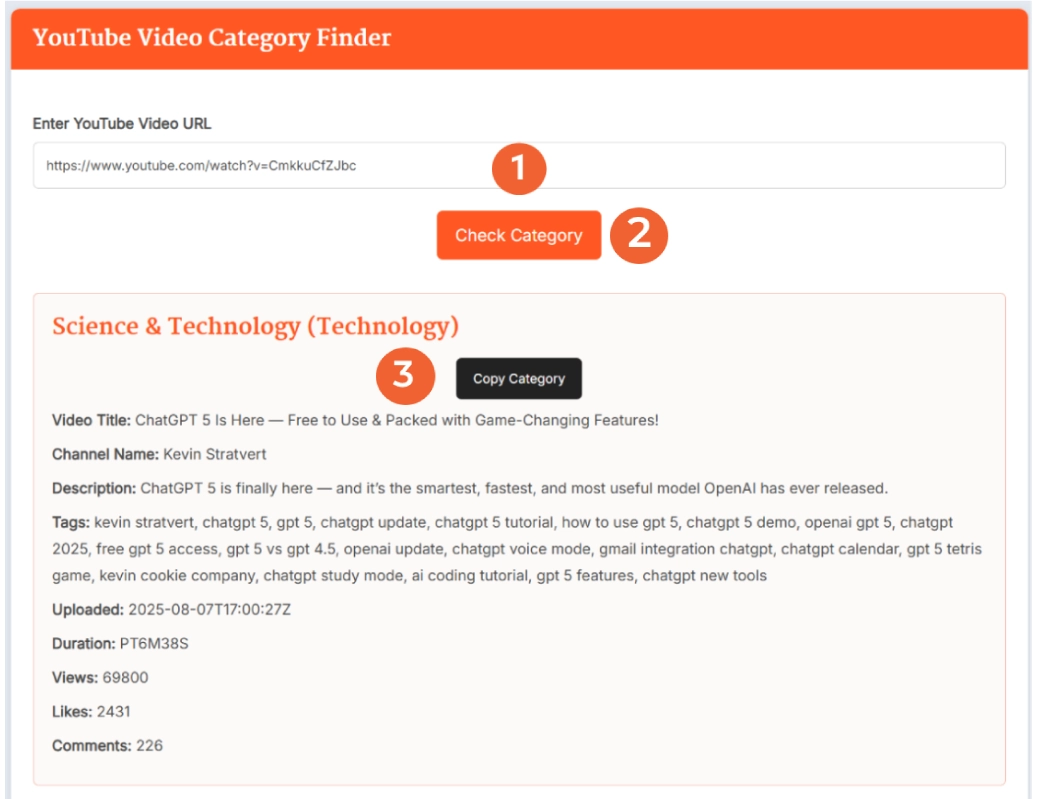
What Does the YouTube Video Category Checker Show?
The category is the main result, but the tool also gives you supporting information about the video so you can understand the result in context.
- Video Category: The category associated with the video.
- Video Title: The video's current title.
- Channel Name: The channel that published the video.
- Description: The available video description.
- Tags: Tags associated with the video when available.
- Upload Date: The video's displayed publication date.
- Duration: The length of the video.
- Views: The available view count.
- Likes: The available like count.
- Comments: The available comment count.
For a broader look at public video information, you can continue your research with the YouTube Data Viewer.
How YouTube Video Categories Work
A YouTube category is broad video metadata. YouTube's video data represents the category through a category ID associated with the video, while its video category data maps those IDs to category information.
That is different from predicting a niche based on what appears in the title or description. A programming tutorial, for example, could be associated with Education or Science & Technology. You cannot reliably determine the video's actual category just by looking at its thumbnail.
YouTube also supports category lists based on region, so available category definitions should be treated as platform data rather than a permanent universal list. The YouTube Category Checker focuses on the category associated with the specific video you enter.
YouTube Category vs Tags: What Is the Difference?
A YouTube video category is a broad classification associated with the video. Tags are individual words or phrases included in the video's metadata.
For example, a PC-building tutorial could have tags relating to processors, graphics cards, gaming PCs, and computer hardware while its broader category is Science & Technology.
Neither should be confused with the video's complete topic or niche. Category gives you the broader classification, while tags can provide more specific metadata context. To examine other optimization elements of a video, you can use the YouTube Video SEO Checker.
Video Category vs Channel Category
This tool checks individual videos, not an entire YouTube channel. That distinction matters because different videos published by the same channel can be associated with different video categories.
If you are researching a competitor channel, check the individual videos you are interested in rather than assuming every upload shares one category. This also prevents a broad channel topic from being confused with the category attached to a specific video.
Why Check a YouTube Video Category?
Category data can be useful as one part of YouTube research. It should provide context, not be treated as a shortcut to better rankings or more views.
- Competitor research: Compare the categories associated with videos covering similar subjects.
- Content audits: Record category information alongside titles, tags, views, likes, comments, and other metadata.
- Video research: Confirm a video's broad classification without relying on its thumbnail or headline.
- Shorts research: Check the category associated with a YouTube video when you have its Shorts URL.
- Playlist planning: Compare categories when reviewing videos for a focused playlist or collection.
- Editorial research: Verify the classification of a video before referencing or embedding it in relevant content.
The YouTube Category Checker tells you what category is associated with the video. It does not score that category, recommend a different one, or predict how changing categories would affect a video's performance.
Common YouTube Video Categories
Categories you may encounter when using the YouTube video category finder include:
- Autos & Vehicles
- Comedy
- Education
- Entertainment
- Film & Animation
- Gaming
- Howto & Style
- Music
- News & Politics
- Nonprofits & Activism
- People & Blogs
- Pets & Animals
- Science & Technology
- Sports
- Travel & Events
Rather than choosing a category from this list based on appearance, paste the video URL into the checker to find the category associated with that particular video.
Frequently Asked Questions
How do I find the category of a YouTube video?
Paste the public video URL into the YouTube Category Checker and click Check Category. The category associated with the video will appear in the results along with additional video information.
Is the YouTube Category Checker free?
Yes. You can check the category associated with a public YouTube video for free without creating an account or signing in.
Does the tool find the actual category or predict one?
The tool retrieves the category associated with the video. It does not predict a category by analyzing the video's title, description, or keywords.
What YouTube URL formats can I use?
You can use standard YouTube watch URLs, youtu.be short links, and YouTube Shorts URL formats to check the associated video category.
What information does the tool show besides the category?
The results can include the video title, channel name, description, tags, upload date, duration, views, likes, and comments when those details are available.
Can I copy the YouTube video category?
Yes. After a successful lookup, you can use the Copy Category button to copy the category shown in the results.
Can I check a YouTube channel category with this tool?
No. This tool checks the category associated with an individual YouTube video. It does not determine a single category for an entire YouTube channel.
Do I need to view YouTube page source to find the category?
No. Paste the YouTube video URL into the checker and it will retrieve the associated category without requiring you to inspect the video's page source manually.
Is a YouTube category the same as video tags?
No. A category is a broad classification associated with a video, while tags are individual words or phrases included in the video's metadata.
Does choosing a YouTube category guarantee better rankings?
No. A video category is metadata associated with the video, and choosing a particular category does not guarantee higher rankings, more views, or better performance.