
Free Image to Link Converter
Upload a JPG, PNG or GIF and turn it into a shareable image URL, with a public Viewer Link and ready-to-use HTML image code.
Drop your image here
or click to browse from your device
Supports JPG, PNG, GIF • Max 10MB
Need a Custom Tool or Website for Your Business?
We build custom web tools, calculators, converters, API integrations and WordPress websites for businesses and agencies. Have a project in mind? Copy our email and send us your requirements.
What Is an Image to Link Converter?
An Image to Link Converter uploads an image from your device and gives you a shareable web URL for it. Instead of sending the same image as an attachment again and again, you can send the generated Viewer Link through email, chat, documents, project notes, or other places that accept clickable links.
SanishTech also generates ready-to-use HTML image code. That gives you two practical options from one upload: a public Viewer Link for sharing and HTML code for displaying the uploaded image in content that accepts HTML.
The tool currently accepts JPG/JPEG, PNG, and GIF files up to 10MB. You do not need to create an account before uploading an image.
Image to URL Converter: What Do You Get?
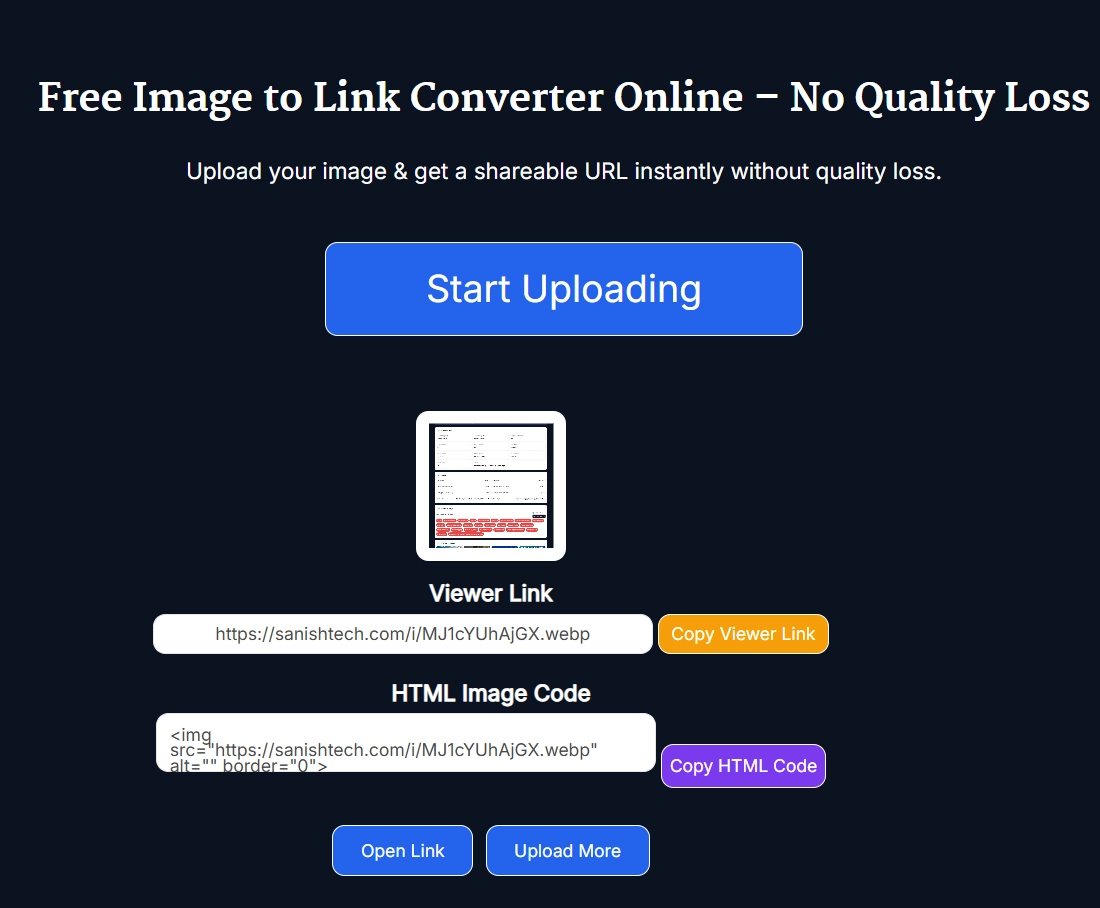
When you use the tool as an image to URL converter, it returns two different outputs:
- Viewer Link: A public URL you can copy, open in a browser, and share with other people.
- HTML Image Code: A ready HTML image snippet for websites, blog posts, landing pages, documentation, and editors that accept HTML.
If your goal is simply to turn an image into a link, copy the Viewer Link. If your goal is to display the uploaded image inside HTML content, use the HTML Image Code instead.
Supported Formats and Upload Limit
- JPG/JPEG: Supported.
- PNG: Supported.
- GIF: Supported.
- Maximum file size: 10MB per selected image.
- Account required: No account is requested before generating a link.
- Public Viewer Link: Yes.
- HTML image code: Yes.
- Cost: Free to use.
The upload field does not currently list WebP, SVG, HEIC, or AVIF as supported input formats, so convert those files to JPG, PNG, or GIF before using this tool.
How to Convert an Image to a Link
- Select Start Uploading: Use the upload button in the tool above.
- Choose an image: Select a JPG, PNG, or GIF file up to 10MB from your device.
- Wait for the upload: The tool uploads the selected image and prepares the result.
- Copy the Viewer Link: Use the generated public URL when you want to share the image as a link.
- Open and check it: Use Open Link to make sure the expected image opens before you send the URL to someone else.
- Copy the HTML code if needed: Use the HTML Image Code when you want an HTML snippet rather than a normal sharing link.
- Upload another image: Select Upload More when you are ready to create a link for another file.
The Image to Link Converter keeps this workflow in one place. You do not need to put the image in Google Drive or Dropbox first. The upload itself is what makes it possible for the tool to create a web link for an image that previously existed only on your device.
JPG to Link, PNG to Link and Photo to URL
The same upload process works whether you search for a JPG to link converter, a PNG to link tool, or a way to turn a photo into a URL. The file format changes, but the goal is the same: upload the supported image and receive a URL that can be shared online.
For a JPG photo, upload the JPG/JPEG file and copy the Viewer Link. For a PNG screenshot or graphic, upload the PNG in the same way. GIF files are also accepted within the 10MB limit. This makes the Image to Link Converter useful as a simple photo to link converter or picture to link tool when the source file uses one of the supported formats.
Why Turn an Image Into a URL?
A photo or graphic stored only on your phone or computer does not have a public web address. To create an image URL, the file has to be made available online first. An image URL generator handles that upload-and-link step for you.
A shareable image link is handy when attaching the original file is awkward or when several people need to reference the same visual. Typical uses include:
- Sharing screenshots in support or project conversations.
- Sending product photos or design mockups to clients.
- Sharing banners and campaign graphics with a team.
- Adding an image reference to documents or spreadsheets.
- Sharing photos through email or chat without attaching the file each time.
- Using generated HTML image code inside an HTML-compatible editor.
Image URL vs Image Attachment
An image attachment sends the actual file with the message. An image URL points to an image that has been made available online, so the recipient opens a web link instead.
The link approach can be more convenient when the same visual needs to be referenced repeatedly. The tradeoff is privacy: SanishTech's Viewer Link is designed for public sharing, so it should not be used for confidential images or files that require restricted access.
Can You Use the Image URL on a Website?
Yes. The tool provides HTML Image Code alongside the Viewer Link. If your website or editor accepts HTML, copy the generated snippet and add accurate alt text that describes the image.
If you need to embed image data directly in HTML or CSS instead of creating a public hosted link, use the Image to Base64 Converter. If the file you need to share is a document rather than an image, the PDF to Link Generator creates a shareable link for PDF files.
Are Image Links Permanent?
Do not assume that a generated image URL is permanent unless a service explicitly provides a retention guarantee. SanishTech currently provides a shareable Viewer Link, but the tool page does not promise that every uploaded file will be hosted forever.
For temporary sharing and everyday collaboration, the generated URL is convenient. For a business-critical website asset or a file that must remain available for years, use storage or hosting where you control the retention policy.
Tips for Creating Better Image Links
- Check the file format: Use JPG/JPEG, PNG, or GIF and stay within the 10MB limit.
- Use a sensible filename: A name such as product-front-view.jpg is easier to recognize than IMG00432.jpg.
- Keep file sizes reasonable: Smaller image files are generally quicker to upload and download.
- Open the result before sharing: Confirm that the Viewer Link opens the image you intended to upload.
- Use accurate alt text: When using the generated HTML code, edit the alt text so it describes the image properly.
- Treat the link as public: Do not upload private, confidential, or sensitive images that should have controlled access.
- Only share images you are allowed to share: Make sure you own the image or have permission to distribute it.
Frequently Asked Questions
How do I turn an image into a URL?
Upload a supported JPG, PNG, or GIF file using the Image to Link Converter. After the upload is processed, copy the generated Viewer Link and use it as the shareable URL for the image.
Can I convert a JPG image to a link?
Yes. JPG and JPEG files are supported. Select the image, upload it, and copy the Viewer Link generated by the tool.
Can I convert a PNG image to a link?
Yes. PNG files are supported up to the tool's 10MB file-size limit. Upload the PNG and copy the generated Viewer Link.
Can I turn a photo or picture into a link?
Yes. If the photo or picture is saved as a supported JPG, PNG, or GIF file and is no larger than 10MB, you can upload it and generate a shareable Viewer Link.
Is the Image to Link Converter free?
Yes. SanishTech's Image to Link Converter is free to use and does not require an account before you upload an image and generate its link.
Which image formats and file sizes are supported?
The tool currently accepts JPG/JPEG, PNG, and GIF images up to 10MB. The upload interface does not list WebP, SVG, HEIC, or AVIF as supported input formats.
Is the generated image link public?
Yes. The Viewer Link is intended for public sharing. Do not upload confidential, private, or sensitive images that require restricted access.
Are the generated image URLs permanent?
SanishTech does not currently state a permanent-retention guarantee for uploaded images. If an image must stay online long term, use a storage or hosting service where you control the retention policy.
Can I create an image URL without Google Drive or Dropbox?
Yes. Upload the image directly to the SanishTech tool and it will generate a Viewer Link without requiring you to first store the file in Google Drive or Dropbox.
Can I use the generated image on a website?
Yes. The tool provides HTML Image Code for use in webpages and editors that accept HTML. Review the generated code and add appropriate alt text before publishing it.