
YouTube RPM Calculator
Calculate your revenue per 1,000 views or estimate YouTube earnings from a known RPM.
Your RPM
Estimated Earnings
The YouTube RPM Calculator calculates how much revenue you earn per 1,000 views or estimates earnings from an RPM you already know. Enter your revenue and views to calculate RPM, or switch modes and enter RPM plus views to estimate revenue. Results update automatically as you type.
What Is YouTube RPM?
RPM stands for Revenue Per Mille, which means revenue per 1,000 views. The basic formula is RPM = revenue ÷ views × 1,000. For example, $50 in revenue from 10,000 views gives you an RPM of $5.
YouTube defines RPM as a creator-focused metric based on revenue after YouTube's revenue share. It can include revenue from ads, YouTube Premium, channel memberships, Super Chat, and Super Stickers. For regular videos, RPM uses total views. For Shorts, YouTube uses engaged views when calculating Shorts RPM.
Who Should Use the YouTube RPM Calculator?
- Monetized YouTube creators: Calculate revenue per 1,000 views from actual channel or video data.
- Shorts creators: Calculate RPM separately using Shorts revenue and engaged views from the same period.
- Channel managers: Compare monetization performance across different reporting periods.
- Creator teams: Turn an existing RPM into simple earnings estimates for future view targets.
- New creators: Understand how RPM connects views and YouTube revenue without manually working through the formula.
Key Features of the YouTube RPM Calculator
- Two calculation modes: Calculate RPM from revenue and views or estimate earnings using a known RPM.
- Automatic calculations: Results update while you enter your numbers, so there is no separate Calculate button.
- Six currency displays: Choose USD, INR, EUR, GBP, AUD, or CAD. The selector formats your result in the chosen currency but does not convert exchange rates.
- View milestone projections: See projected earnings at 10K, 100K, and 1M views using the calculated or entered RPM.
- Clear formulas: The calculation used for RPM or estimated earnings appears directly below the result.
- Quick Reset: Clear the current inputs and result when you want to calculate a different scenario.
How to Use the YouTube RPM Calculator
- Choose a calculation mode: Select RPM from Revenue to calculate your RPM, or Earnings from RPM to estimate revenue.
- Select your currency: Pick USD, INR, EUR, GBP, AUD, or CAD to format the displayed result.
- Enter your numbers: Add revenue and views for an RPM calculation, or add RPM and views for an earnings estimate.
- Read the result: Your RPM or estimated earnings updates automatically, along with the formula used.
- Check the projections: Review earnings at 10K, 100K, and 1M views, then use Reset when you want to test another scenario.
When Is an RPM Calculator Useful?
One useful approach is comparing equivalent periods. If you know your YouTube revenue and views for last month, calculate that month's RPM. Repeat the calculation for this month using the same type of revenue and views. You can then compare the two periods without letting a simple increase in views hide a change in revenue per 1,000 views.
The second mode works better for planning. Suppose your historical RPM is $4.50 and you want to understand what 100,000 views would produce if that RPM remained unchanged. The calculator gives you the mathematical estimate without pretending that future RPM is guaranteed.
For broader earnings scenarios that do not start with your own RPM, use the YouTube Money Calculator. Shorts creators can also run separate estimates with the YouTube Shorts Earnings Calculator.
Benefits of Calculating YouTube RPM
- Measure revenue efficiency: See how much YouTube revenue your views produced on a per-1,000-view basis.
- Compare periods fairly: RPM gives you a common metric when two months or videos have very different view totals.
- Estimate view-based revenue: Use an RPM you already know to calculate what the same rate would produce at another view count.
- Separate Shorts and long-form analysis: Run each format independently instead of combining different revenue systems into one result.
- Avoid manual math: The calculator handles both formulas and displays useful view-milestone projections automatically.
YouTube RPM Calculation Example
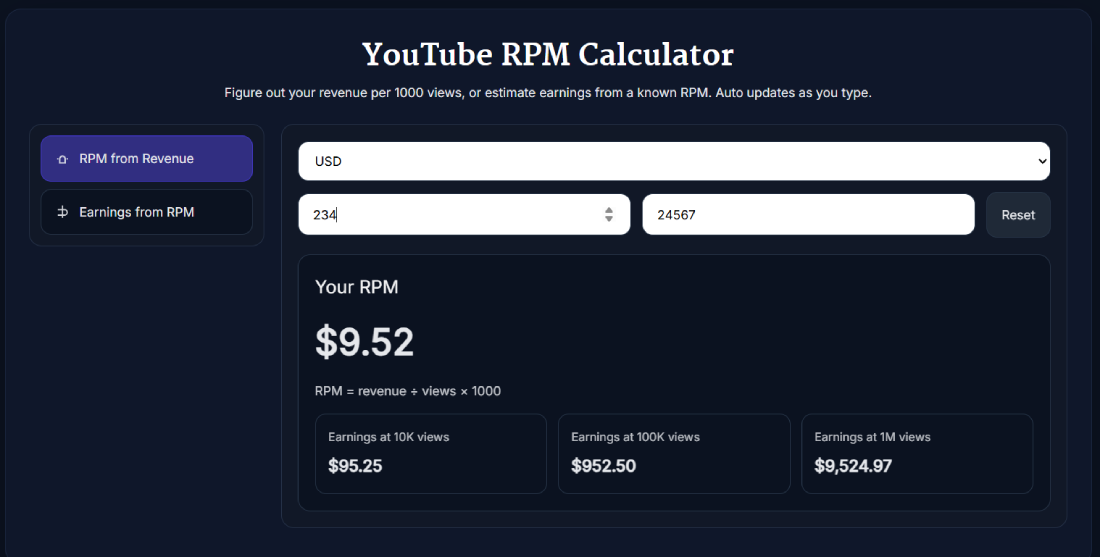
Suppose a creator earned $234 from 24,567 views during the same reporting period. Entering those figures into RPM from Revenue gives an RPM of $9.52. At that same calculated rate, the projection cards show approximately $95.25 at 10K views, $952.50 at 100K views, and $9,524.97 at 1M views. These larger figures are projections based on the same RPM, not guaranteed future YouTube earnings.
Tips for More Meaningful RPM Calculations
- Match your reporting period: Revenue and views should cover the same dates when calculating RPM.
- Use the right revenue figure: If you want a result comparable with YouTube Analytics RPM, use the relevant YouTube revenue rather than unrelated income such as external sponsorships or merchandise sales.
- Calculate Shorts separately: YouTube uses engaged views for Shorts RPM, so avoid mixing Shorts and regular video figures without understanding the difference.
- Treat projections as estimates: Earnings from RPM assumes the RPM you enter stays constant as views increase.
- Keep currencies consistent: Enter revenue and RPM in the currency you select because the currency menu formats values but does not perform exchange-rate conversion.
Frequently Asked Questions
How accurate is the YouTube RPM Calculator?
The calculator follows the mathematical formula RPM = revenue ÷ views × 1,000. The calculation itself is precise, but the usefulness of the result depends on entering the correct revenue and view figures from the same reporting period.
Which currencies does the calculator support?
The calculator supports USD, INR, EUR, GBP, AUD, and CAD for displaying RPM and earnings results.
Does the currency selector convert exchange rates?
No. Selecting another currency changes how the result is displayed but does not convert your numbers using a live exchange rate. Enter revenue and RPM values in the currency you select.
Can I estimate YouTube earnings from RPM?
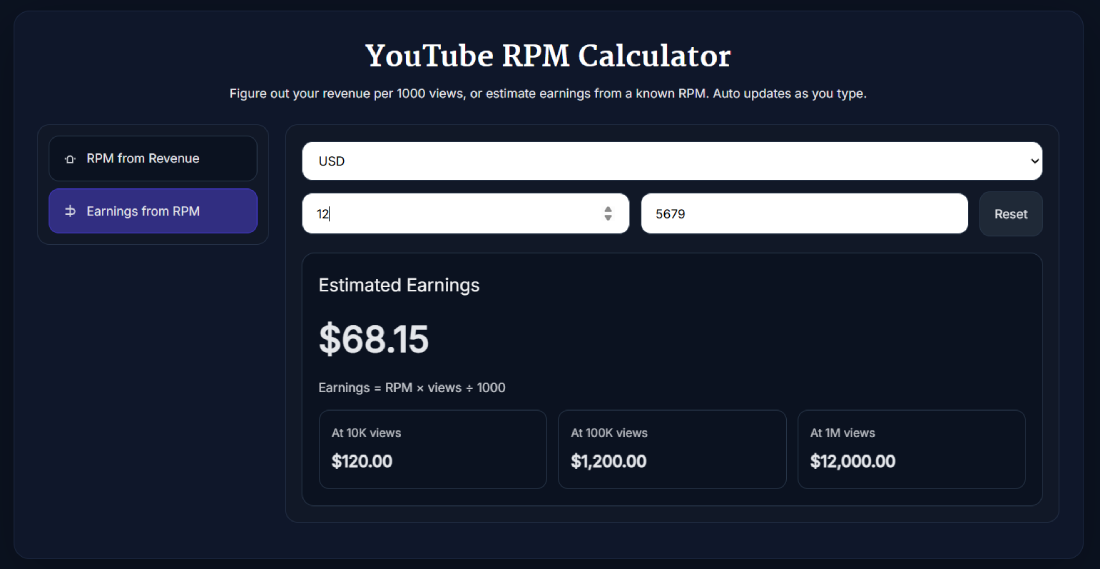
Yes. Select Earnings from RPM, enter your RPM and expected views, and the calculator uses Earnings = RPM × views ÷ 1,000. The result is an estimate based on the RPM remaining unchanged.
Can I use this YouTube RPM Calculator for Shorts?
Yes, but use Shorts-specific figures. YouTube calculates Shorts RPM using revenue per 1,000 engaged views, so use Shorts revenue and engaged views from the same reporting period.
Do I need to connect my YouTube account?
No. The calculator does not require you to sign in to YouTube or connect a channel. You enter the revenue, views, or RPM figures yourself.
What does RPM mean on YouTube?
RPM means Revenue Per Mille. It represents how much revenue a creator earns for every 1,000 views after YouTube's revenue share. YouTube RPM can include several YouTube revenue sources, not just advertising.
How do you calculate YouTube RPM?
Divide your revenue by the corresponding number of views and multiply the result by 1,000. For example, $100 in revenue from 20,000 views produces an RPM of $5.
What is the difference between YouTube RPM and CPM?
RPM is creator-focused and represents revenue earned per 1,000 views after YouTube's revenue share. CPM is advertiser-focused and represents what advertisers pay per 1,000 ad impressions before YouTube's revenue share.
What is a good RPM on YouTube?
There is no single RPM that is good for every YouTube channel. Revenue sources, audience, monetization, video format, unmonetized views, and other factors can change RPM. Comparing your own RPM across similar periods is usually more useful than relying on a universal benchmark.