
YouTube Shorts Embed Code Generator
Generate, preview and copy a vertical YouTube iframe for your website without writing the embed code manually.
This tool just saved you time!
This tool is completely free — a small coffee helps keep it running for everyone 🙏
No subscriptions. No paywalls. Just coffee if you feel like it.
The YouTube Shorts Embed Code Generator turns a YouTube Short, standard video URL, shortened link or video ID into copy-ready iframe HTML. You can choose the dimensions, adjust supported player options, preview the result and copy the generated code into your website.
The default 315 × 560 player uses a tall layout suited to vertical Shorts. Select Responsive when you want the embed to fill its container while preserving the chosen width-to-height ratio.
What the YouTube Shorts Embed Code Generator Does
A YouTube Short uses the same iframe player structure as another YouTube video. The key step is extracting the video ID and placing it in an embed URL:
https://www.youtube.com/embed/VIDEO_ID
This tool handles that conversion and builds the surrounding iframe HTML. It does not download, re-upload or modify the Short.
- Extracts the video ID: Reads supported YouTube URLs or a bare 11-character ID.
- Generates iframe HTML: Produces code that can be pasted into an HTML-enabled editor.
- Supports custom dimensions: Change the width and height from the 315 × 560 defaults.
- Offers player options: Add autoplay, looping, control and keyboard parameters.
- Provides privacy-enhanced output: Switches the iframe to the youtube-nocookie.com domain.
- Creates responsive code: Wraps the iframe in a container that preserves the selected aspect ratio.
- Shows a preview: Displays the generated iframe before you copy it.
- Copies the complete code: Sends the generated HTML to your clipboard.
- Resets the form: Restores the default dimensions and clears all selected options.
Supported YouTube Shorts URL Formats
The generator accepts several common ways of identifying a YouTube Short or video:
- Shorts URL: https://www.youtube.com/shorts/VIDEO_ID
- Standard watch URL: https://www.youtube.com/watch?v=VIDEO_ID
- Shortened URL: https://youtu.be/VIDEO_ID
- Bare video ID: VIDEO_ID
Extra sharing parameters on a valid Shorts URL do not need to be removed manually. The generator extracts the underlying video ID and builds a clean embed URL.
The tool checks the URL structure but does not contact YouTube to confirm that the video exists or permits embedding. A deleted, private, restricted or embedding-disabled video may generate valid-looking HTML without playing successfully.
If you need help locating the identifier, use the YouTube Video ID Finder.
How to Generate YouTube Shorts Embed Code
- Paste the YouTube URL: Enter a Shorts URL, watch URL, youtu.be link or video ID.
- Set the dimensions: Keep the default 315 × 560 size or enter your preferred width and height.
- Choose player options: Select autoplay, loop, controls, keyboard, fullscreen, privacy or responsive settings as needed.
- Click Generate: The tool creates the iframe HTML and displays a preview.
- Review the preview: Confirm that the correct video loads and the proportions suit your layout.
- Copy the HTML: Select Copy to Clipboard.
- Paste it into your website: Use an HTML block, code module or template that permits iframe markup.
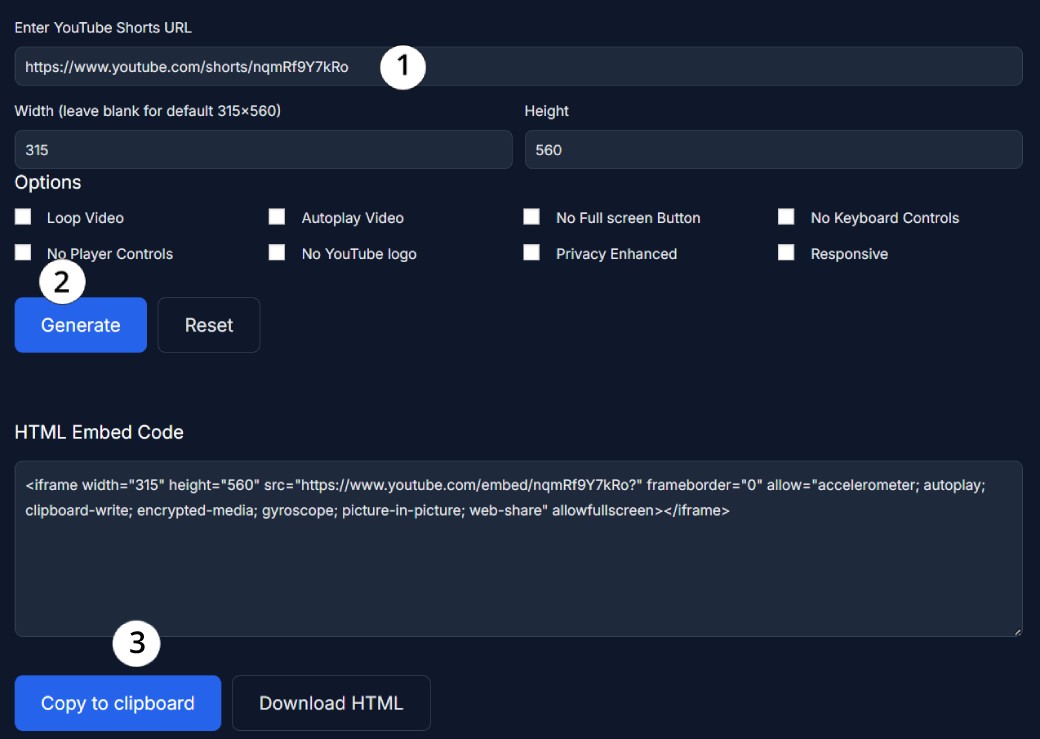
Default iframe example
A basic result follows this structure:
<iframe width="315" height="560" src="https://www.youtube.com/embed/VIDEO_ID" frameborder="0" allow="accelerometer; autoplay; clipboard-write; encrypted-media; gyroscope; picture-in-picture; web-share" allowfullscreen></iframe>
Replace VIDEO_ID with the identifier extracted from the YouTube link. The generator performs this replacement automatically.
Understanding the Embed Options
Custom width and height
The default player is 315 pixels wide and 560 pixels tall. This is close to the vertical 9:16 format commonly used for Shorts. You can enter different dimensions when your website layout requires another size.
Responsive
Responsive mode removes the fixed iframe dimensions and places the player inside a full-width wrapper. The wrapper uses the selected width and height to calculate its aspect ratio, so changing those fields still affects the final shape.
Autoplay Video
This option adds autoplay=1. Browsers can block autoplay, especially when a video contains sound. YouTube also states that autoplayed embedded videos do not increment video views.
Loop Video
Loop mode adds loop=1 and sets the same video ID as the playlist value. Google documents this combination as the supported method for looping one embedded video.
No Keyboard Controls
This option adds disablekb=1, which disables the keyboard controls supported by the YouTube player.
No Player Controls
This option adds controls=0. It hides the standard player controls, which can make playback less obvious and may reduce accessibility for some visitors.
No Full Screen Button
The current generator removes fullscreen permission from the iframe. It does not add YouTube’s documented fs=0 parameter, so the displayed player behavior may vary.
No YouTube Logo
This option adds modestbranding=1. Google has deprecated this parameter and states that it has no effect. The generator cannot guarantee that YouTube branding will be removed.
Privacy Enhanced
Privacy Enhanced switches the iframe source from youtube.com to youtube-nocookie.com. Google says ads shown through this player are non-personalized and the view is not used to personalize advertising outside the website or app.
Privacy Enhanced Mode is not, by itself, a guarantee of GDPR, cookie-law or consent compliance. Website owners remain responsible for their consent setup, privacy notice and applicable legal requirements. Read YouTube’s official embed and privacy guidance before publishing.
How to Embed a YouTube Short in WordPress
- Generate and copy the iframe code.
- Open the WordPress page or post where the Short should appear.
- Add a Custom HTML block in the block editor.
- Paste the iframe code into that block.
- Use Preview to confirm the player appears correctly.
- Publish or update the page after testing desktop and mobile layouts.
Some editors, page builders, security plugins and user roles remove iframe HTML. If the code disappears after saving, check whether your editor permits iframe tags rather than repeatedly generating new code.
For regular landscape videos, use the YouTube Embed Code Generator instead. Its default dimensions are better suited to long-form video layouts.
Accessibility and Performance Improvements
The generated code works as a basic embed, but two small manual additions can improve it:
- Add an iframe title: Include a descriptive attribute such as
title="YouTube Short: Quick workout tip"so screen-reader users understand the iframe’s purpose. - Consider lazy loading: Add
loading="lazy"when the embed appears below the initial visible area. Test it with your website and performance setup before publishing. - Keep useful controls: Hiding player and keyboard controls can make the Short harder to operate.
- Avoid unnecessary autoplay: Unexpected playback can distract visitors and may be blocked by their browser.
- Test the vertical ratio: A tall player can overwhelm a narrow article column if its surrounding layout is not prepared for it.
Adding a Short does not automatically improve SEO, rankings, conversions or dwell time. Embed it when the video genuinely supports the page and gives the visitor information that is easier to understand visually.
Frequently Asked Questions
What does the YouTube Shorts Embed Code Generator do?
It extracts a YouTube video ID and creates iframe HTML for embedding the Short on a website. You can adjust dimensions and player options, preview the result and copy the generated code.
Which YouTube URL formats does the generator accept?
It accepts youtube.com/shorts/ URLs, standard youtube.com/watch URLs, shortened youtu.be links and bare 11-character YouTube video IDs.
What are the default YouTube Shorts embed dimensions?
The default iframe is 315 pixels wide and 560 pixels tall. You can replace both values or enable Responsive mode to fill the available container width while preserving the selected ratio.
How does the Responsive option work?
It places the iframe in a full-width wrapper and calculates the wrapper’s aspect ratio from the entered width and height. The video then scales with its surrounding container.
Can I preview and copy the generated Shorts iframe?
Yes. After you click Generate, the tool displays the HTML code and an iframe preview. The Copy to Clipboard button copies the complete generated markup.
Does the generator verify that the Short can be embedded?
No. It validates and converts the URL or video ID without checking the video’s availability, privacy setting, regional restrictions or embedding permission.
How can I manually embed a YouTube Short?
Take the video ID from the Shorts URL and place it after youtube.com/embed/ in an iframe source. The generator automates this conversion and adds the selected dimensions and player parameters.
Does Privacy Enhanced Mode block all YouTube cookies?
Do not treat it as an absolute no-cookie guarantee. The option uses youtube-nocookie.com, and Google says it limits advertising personalization associated with the embedded view. Your website may still need consent controls and privacy disclosures.
Can the generator completely remove the YouTube logo?
No. The option adds modestbranding=1, but Google has deprecated that parameter and states that it has no effect. YouTube controls how its branding appears in the embedded player.
Do autoplayed embedded Shorts count as YouTube views?
YouTube states that autoplayed embedded videos do not increment video views. Other engagement is also subject to YouTube’s validation systems, so loading an iframe does not guarantee a counted view.