
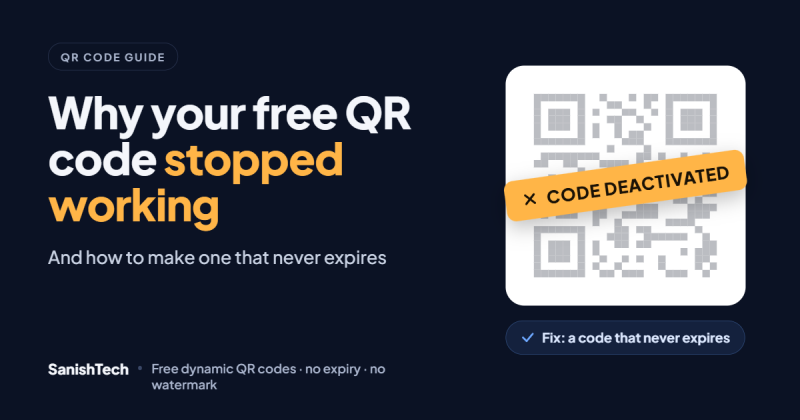
Picture this. A small restaurant owner makes a QR code for the menu on a “free” website, prints it on 40 table cards, and laminates every one. Two weeks later a customer holds up a phone and says, “Sir, this isn’t opening.” The screen says the code has been deactivated, and to turn it back on you need to buy a plan.
If something like this just happened to you, you’re not alone, and you did nothing wrong. In most cases, a free QR code stops working because it was a dynamic code on a free trial, and the trial ended. The code itself isn’t broken. The company that controls the link behind it switched it off.
In this guide I’ll explain the four common reasons a QR code stops working, how to tell which one hit you, what to do if you’ve already printed, and how to make a code that keeps working without a time limit.
The 4 reasons a QR code stops working
A QR code is just a pattern of black and white squares. The pattern itself doesn’t wear out. When a code fails, the cause is almost always one of these four.
1. Your dynamic code was on a free trial, and the trial ended
This is the big one. Many QR generators let you create a “free” dynamic QR code, but the free part only lasts 7 to 14 days. After that, the short link inside your code stops redirecting. Anyone who scans it sees an error page, a “code paused” message, or an upgrade screen.
The trick works because people don’t read the fine print when they’re in a hurry to print. By the time the trial ends, the menus, flyers and visiting cards are already out there.
How to tell: scan the code. If you see the generator’s own branding or a message about a plan, an account or a trial, this is your problem.
2. The page the code points to is gone
Sometimes the QR code works fine, but the page behind it doesn’t. Maybe you rebuilt your website and the menu URL changed. Maybe a Google Drive file was deleted, or its sharing was set to “Restricted”. Maybe an offer page was taken down after the sale ended.
How to tell: the scan opens your own website or a Google page, but it shows “404”, “page not found” or “you need access”.
3. The code was printed in a way phones can’t read
Printing causes more problems than people expect. Common mistakes:
- The code is too small, often under 2 cm on a visiting card
- Light code on a dark background, like white squares on a black card
- Low contrast, such as light grey on cream or gold on yellow
- No white space (the “quiet zone”) around the edges
- Printed on glossy or curved surfaces that reflect light
How to tell: some phones scan it and others don’t, or it only works when you hold the phone at a strange angle.
4. The logo is covering too much of the code
A logo in the middle of a QR code looks great, and it can work. QR codes have built-in error correction, which means part of the code can be hidden and it still scans. But if the logo is too big, or the code was made with low error correction, there isn’t enough of the pattern left to read.
How to tell: the code worked in the preview on your laptop screen, but fails once printed, especially at small sizes.
Static vs dynamic QR codes: which one can expire?
To understand why reason #1 happens, you need to know the two types of QR codes.
A static QR code stores your link directly inside the pattern. Nothing sits in between. If you scan a static code for yourshop.com/menu, your phone goes straight there. Nobody can switch it off, because no company is involved after the code is made. The downside: the link can never change. If your menu URL changes, every printed code points to the wrong place.
A dynamic QR code stores a short link instead, something like qr.example/ab12. When someone scans it, that short link redirects them to your real page. Because the redirect lives on the generator’s server, you can change the destination any time, and the service can count how many people scanned.
That server is also the weak point. If the company decides your free period is over, it stops the redirect, and your code dies.
| Static QR code | Dynamic QR code | |
|---|---|---|
| What’s inside | Your actual link | A short redirect link |
| Can it expire? | No, never | Yes, if the provider switches it off |
| Change the link after printing | Not possible | Yes, any time |
| Scan tracking | No | Yes |
| Needs an account | No | Usually yes |
| Best for | Wi-Fi passwords, fixed text, links that never change | Menus, offers, review cards, anything printed |
So static codes never expire, but they can’t be edited. Dynamic codes can be edited, but you’re trusting the provider to keep them running. The goal is to get a dynamic code from a provider that doesn’t put a clock on it.
How to check a QR generator before you print
Most “free” QR sites look the same on the homepage. The differences are in the pricing page and the FAQ. Before you print anything, spend five minutes checking these six things.
- Does the free dynamic code have a time limit? Look for words like “trial”, “14 days” or “upgrade to keep your codes active”. If the free plan has an end date, so does your code.
- Is there a scan limit? Some plans stop working after a fixed number of scans per month. A busy restaurant can hit that in a week.
- Do people see ads when they scan? Some free services show an ad or a waiting screen before sending people to your page. Your customers will blame you, not the QR company.
- Is there a watermark on the code? Check the downloaded image, not just the preview.
- What happens when a paid plan ends? This matters even if you plan to pay. Do your codes stop the same day, or is there a grace period? Is anything deleted?
- Is it a subscription that renews on its own? Auto-renewal isn’t bad by itself, but you should know before your card gets charged again.
A quick test: search for the generator’s name plus “stopped working” or “expired”. If many people complain about the same thing, you have your answer.
If a site doesn’t answer these questions clearly, treat that as a warning sign.
How to make a dynamic QR code that never expires
I built the SanishTech free dynamic QR code generator after seeing small business owners lose their printed codes this way. The rules are simple. Every account gets 3 dynamic QR codes free, and they don’t expire. Scans are unlimited, there are no ads on the scan, and no watermark on the image.
Here’s how to make one in about two minutes.
Step 1: Pick what the code is for and paste your link
Open the dynamic QR code generator and choose a type: Menu, Google Review, WhatsApp, Maps or Website. Paste your link. Give the code a name only you will see, like “Table cards – Anna Nagar branch”, so you can find it later.
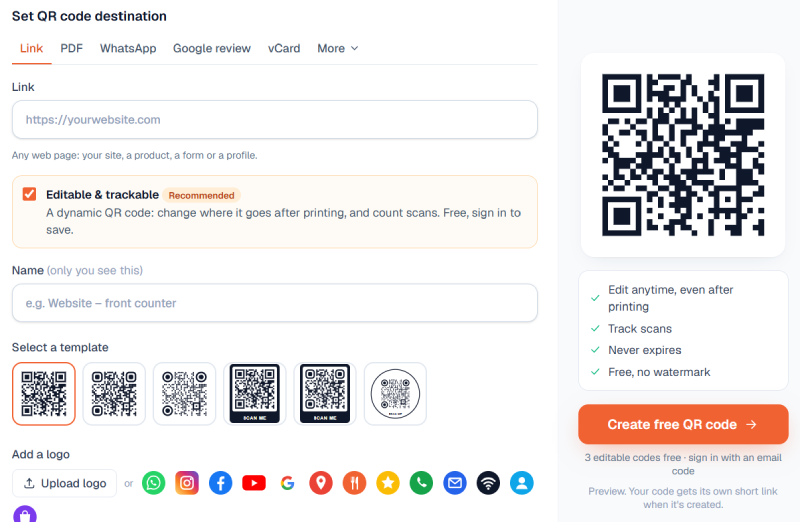
Step 2: Add your logo and pick a design
Upload your logo (a square or round PNG, JPG or WebP works best), or choose an icon like WhatsApp, Instagram or Google. Then pick a template: a SCAN ME frame, a round code, dots or rounded corners. The preview updates as you go.
The tool uses extra error correction, so the code still scans with a logo in the middle. It also warns you if your colours are too close together to scan reliably.
Step 3: Create the code and download it
Click Create free QR code. You sign in with a one-time code sent to your email, with no password to remember. Your editable code is created straight away. Download it as PNG for everyday use, or SVG for posters and large prints.
Step 4: Change the link whenever you need to
This is where a dynamic code pays off. Open your dashboard, change where the code points, and save. The change usually reaches everyone within seconds, and always within about a minute. The printed code stays exactly the same.
From the same dashboard you can pause a code, resume it, and see the total number of scans.
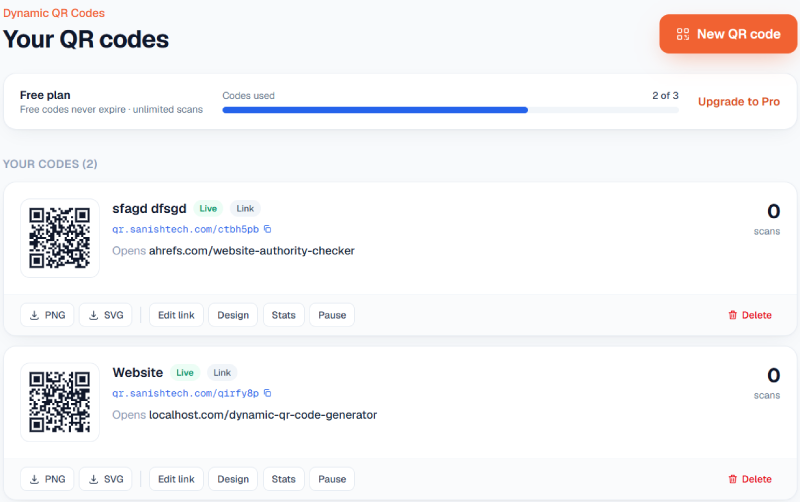
Do you need more than 3 codes? The Pro plan gives up to 50 dynamic codes, scan stats by day, country and device, PDF codes and CSV export. It’s a single payment for 30 or 365 days, never charged automatically. If you don’t renew, your codes keep working for 30 more days and you get an email before that. After that, your 3 oldest codes stay on and the rest are paused, not deleted, until you renew.
Already printed a dead QR code? Here’s what you can do
If your cards, banners or packaging are already printed, you have three options. Be honest with yourself about which one makes sense.
Option 1: Pay the old provider, once. If you have a lot of expensive printed material, such as signboards or a big packaging run, paying to reactivate may be the cheapest fix for now. Before you pay, check whether it auto-renews and what happens when it ends. Otherwise you’ll be in the same place next year.
Option 2: Fix the destination, if that’s the problem. If the code still opens but lands on a 404 or a “no access” page (reason #2), you may not need a new code at all. Restore the old page, set up a redirect from the old URL to the new one, or change the Google Drive sharing back to “Anyone with the link”.
Option 3: Make a new code and replace it gradually. For table cards, flyers and visiting cards, the cleanest fix is a new dynamic code from a provider without a trial clock. Print small stickers with the new code and stick them over the old one. It’s cheap, it takes an afternoon, and you won’t face the same problem again.
Whatever you choose, keep a list of every place you’ve printed each code. It helps a lot the next time something changes.
Printing tips so your QR code scans every time
A code that never expires still has to be readable. These habits prevent most printing problems.
- Size: keep it at least 2 × 2 cm. For posters or boards people read from a distance, go much bigger.
- Colour: use a dark code on a light background. Black on white is safest. Avoid inverted (light on dark) codes, because some phone cameras can’t read them.
- White border: leave clear space all around the code. Don’t let text or design elements touch it.
- File type: use SVG for large prints so the edges stay sharp. PNG is fine for small items and screens.
- Surface: matte paper scans better than glossy, especially under restaurant lights.
- Test before the full print run: print one sample and scan it with two or three different phones, including an older Android, before you order 500 copies.
- Add a short line of text: “Scan for menu” or “Scan to leave a review” tells people what they’ll get, and more of them will scan.
Frequently asked questions
Do free QR codes expire?
Static QR codes never expire, because the link is stored inside the code itself. Dynamic QR codes can expire if the provider has a free trial or deactivates codes on free plans. Some providers, including SanishTech, keep free dynamic codes working with no time limit.
Why did my QR code stop working suddenly?
Usually a free trial on a dynamic code ended, or the page it points to was deleted or made private. Scan it and read the message. A provider’s upgrade page means the trial ended. A 404 means your link is the problem.
Can I change a QR code after printing it?
Only if it’s a dynamic QR code. You change the destination in your dashboard, and the printed code sends people to the new page. A static code can’t be changed after it’s made.
Can I reactivate an expired QR code for free?
That depends on the provider. Most ask you to buy a plan to turn it back on. If you don’t want to pay, the practical option is a new code printed as a sticker over the old one.
Is a dynamic QR code safe to use?
Yes, if the provider checks the links. SanishTech checks every link with Google Safe Browsing and blocks codes that point to scams, malware or other harmful content.
Does a QR code work without the internet?
The phone can read the code without the internet. But to open a website, menu or review page, the phone needs a data connection. Wi-Fi login codes and plain text codes work offline.
How many times can a QR code be scanned?
A static code has no limit. Dynamic codes depend on the provider. Some cap scans on free plans. On SanishTech, scans are unlimited on both the free and Pro plans.
The bottom line
A QR code doesn’t break on its own. When it stops working, either someone switched off the link behind it or the page it points to has gone. Both are avoidable.
For anything that never changes, like a Wi-Fi password, a static code is enough. For anything you print and might update later, like a menu, an offer or a review card, use a dynamic code from a provider that tells you clearly that free codes don’t expire.
That’s exactly why I made SanishTech’s version free in a way that actually stays free. Make your first dynamic QR code here. It takes about two minutes, and you won’t get a surprise “deactivated” message two weeks later.