
YouTube Comment Downloader
Download public YouTube comments and available replies to Excel, CSV, JSON or TXT using a video URL or 11-character video ID.
This tool just saved you time!
This tool is completely free — a small coffee helps keep it running for everyone 🙏
No subscriptions. No paywalls. Just coffee if you feel like it.
You just downloaded 0 comments in seconds!
Reading through these manually would've taken ~0 minutes. This tool is completely free — a small coffee helps keep it running 🙏
No subscriptions. No paywalls. Just coffee if you feel like it.
The YouTube Comment Downloader lets you download publicly available comments from a YouTube video and export the returned data to Excel, CSV, JSON, or TXT. Paste a YouTube video URL or 11-character video ID, choose whether to include available replies, and fetch the comments.
It is useful when you need YouTube comments as structured data rather than copying them manually. You can review audience feedback, search comments for recurring questions, sort by available like counts, or move the exported data into a spreadsheet or analysis workflow.
What Does the YouTube Comment Downloader Do?
The tool retrieves available public comment information for the video you provide. Its live interface states that the comment data is retrieved through the YouTube API rather than by scraping the visible YouTube webpage.
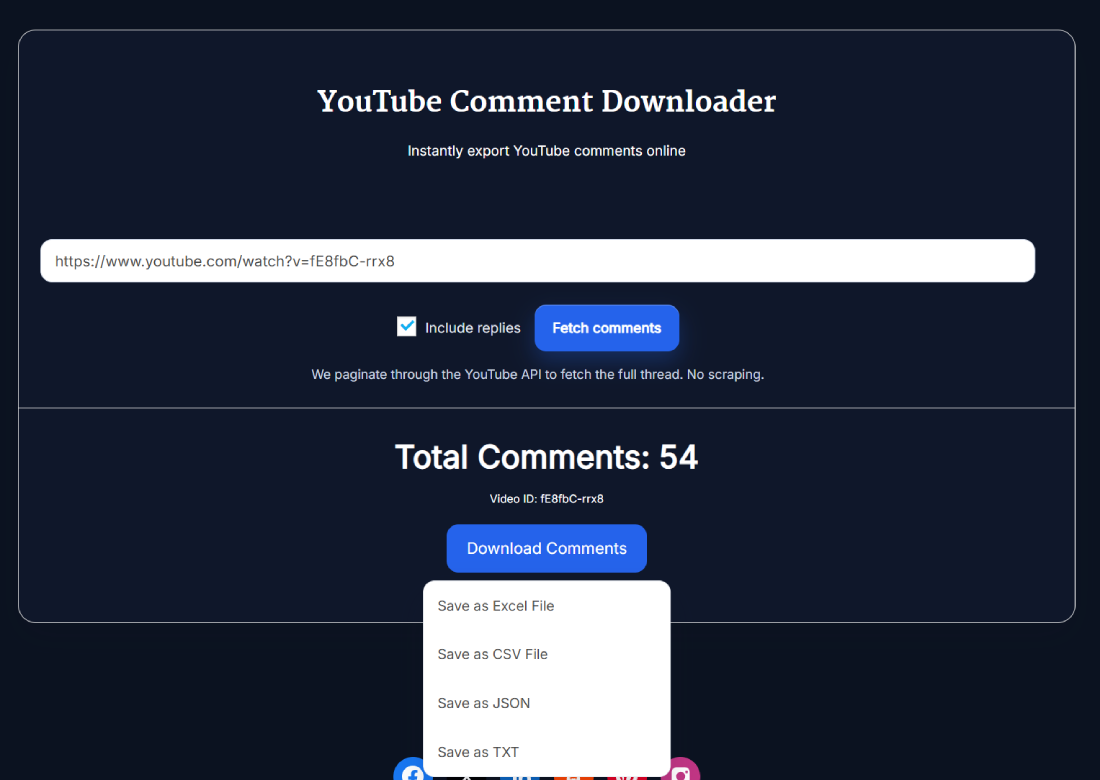
During fetching, the tool displays progress. After a successful request, it shows the total number of comments returned and the resolved video ID. The Download Comments menu then lets you save the results in four formats.
- Excel XLSX: Best when you want a ready-to-open spreadsheet with sorting and filtering possibilities.
- CSV: Useful for spreadsheets, databases, data tools, scripts, and other portable workflows.
- JSON: Keeps the returned comment information in a structured format suited to programming and data processing.
- TXT: Provides a simpler text-oriented version for reading, searching, or archiving.
How to Download YouTube Comments
- Copy the YouTube URL: Open the video whose comments you want to retrieve and copy its URL. You can also use the video's 11-character ID.
- Paste the URL or ID: Enter it into the YouTube Comment Downloader field.
- Choose whether to include replies: Keep Include replies enabled when you want available replies returned with the comments, or turn it off to focus on top-level comments.
- Click Fetch comments: The tool starts retrieving the available public comment data.
- Check the results: After a successful fetch, review the Total Comments value and resolved Video ID.
- Open Download Comments: Choose Save as Excel File, Save as CSV File, Save as JSON, or Save as TXT.
- Use the export: Open the downloaded file in the spreadsheet, text editor, or data-analysis tool that fits your workflow.
If the URL contains extra tracking or sharing parameters, you can clean it first with the YouTube URL Cleaner.
What Information Is Included in the Comment Export?
The Excel and CSV exports are designed to make the returned YouTube comments easy to review. The current export includes:
- S.No: A sequential number for each exported row.
- Name: The available comment author's display name, with a link to the author's YouTube profile when available.
- Date: The published timestamp returned for the comment.
- Likes: The available like count associated with the comment.
- Comment: The comment text.
- View source: A link back to the source comment when the required comment and video identifiers are available.
The spreadsheet exports also include the source URL and identify the export timezone as UTC. JSON keeps the returned comment objects in structured form, while TXT creates a simplified text version of the results.
Download YouTube Comments With or Without Replies
The YouTube Comment Downloader includes an Include replies option, which is enabled by default on the current interface. Turning it off lets you focus on top-level comments.
Including replies can be useful when the discussion below a comment provides important context. For example, a top-level question might be answered by the creator or discussed by several viewers in its replies.
The number of returned items can therefore change depending on whether replies are included. Do not assume that a video's visible comment count and the number exported by the tool will always be identical.
Which YouTube Comment Export Format Should You Use?
There is no single best format for every use case. Pick the format based on what you plan to do after downloading the comments.
- Excel: A good choice for manually sorting comments, filtering rows, reviewing likes, and working directly in spreadsheet software.
- CSV: Useful when you want a portable dataset that can be imported into Excel, Google Sheets, databases, scripts, and analytics tools.
- JSON: Better suited to development, automation, applications, or workflows that need structured comment objects.
- TXT: Convenient when you mainly want an easy-to-read text version without a spreadsheet structure.
For everyday comment research, Excel or CSV will usually be the easiest starting point. JSON makes more sense when another application or script will process the data.
What Can You Do With Downloaded YouTube Comments?
A comment export can turn a busy discussion section into something you can actually search and organize.
- Find audience questions: Search for recurring questions that may deserve a follow-up video, article, FAQ, or explanation.
- Review feedback: Look for repeated complaints, suggestions, product experiences, or requests.
- Sort by likes: Use available like counts as additional context when reviewing comments that attracted viewer attention.
- Research recurring topics: Search the exported comment text for products, names, features, problems, or common phrases.
- Study conversations: Include available replies when you need more context around discussions beneath top-level comments.
- Build research datasets: Use CSV or JSON when you want to process returned comments in another analysis workflow.
YouTube Comment Downloader vs Comment Picker
These tools solve different problems. A YouTube Comment Downloader is for collecting available comments and exporting them as data. A comment picker is designed to select a comment from an eligible set, commonly for giveaways or random selections.
If your goal is choosing a comment rather than exporting a dataset, use the YouTube Random Comment Picker instead.
Keeping these tasks separate matters because downloading comments for research and randomly selecting a comment are two different search intents.
Why Some YouTube Comments May Not Be Available
The YouTube Comment Downloader depends on comment information that can be retrieved for the supplied video. A successful download should not be interpreted as a permanent or complete archive of everything ever posted beneath that video.
- Comments may be disabled for a video.
- Deleted comments cannot be expected to appear in the returned public data.
- Restricted or otherwise unavailable information may not be retrievable.
- Available comment and like information can change after you create an export.
- Including replies can increase the number of returned items.
- The current interface does not advertise a numeric maximum, so unlimited extraction should not be assumed.
YouTube's comment system is also paginated. That means larger result sets may require multiple requests rather than being returned as one single response.
Frequently Asked Questions
How do I download YouTube comments?
Paste a YouTube video URL or 11-character video ID into the YouTube Comment Downloader, choose whether to include available replies, and click Fetch comments. After a successful fetch, open Download Comments and select Excel, CSV, JSON, or TXT.
Can I use a YouTube video ID instead of a URL?
Yes. The current input accepts a YouTube URL or an 11-character video ID. Enter either value into the same field before fetching comments.
Can the YouTube Comment Downloader include replies?
Yes. The tool has an Include replies checkbox, which is enabled by default on the current interface. Turn it off when you only want top-level comments returned.
Which file formats can I download?
The current Download Comments menu provides four options: Excel XLSX, CSV, JSON, and TXT.
What information is included in Excel and CSV?
Excel and CSV include a row number, available author name, date, like count, comment text, and a source-comment link when available. They also include the source URL and identify the export timezone as UTC.
Do I need a YouTube account to download comments?
No. The current tool can fetch supported publicly available video comments without requiring you to sign in to a YouTube account.
Can I download every comment from a YouTube video?
Do not assume that every comment or reply will always be returned. Availability can depend on the video, public comment data, replies, deleted or restricted comments, and the data returned during the request.
Why can't comments be downloaded from some YouTube videos?
Comments may be disabled, the video or comment information may be unavailable, or YouTube may not provide the requested public comment data. Deleted comments also cannot be expected to appear in the export.
What is the difference between a YouTube comment downloader and a comment picker?
A comment downloader collects available comments for export and analysis. A comment picker selects a comment from an eligible set, typically for random selections or giveaways.
Which format is best for analyzing YouTube comments?
Excel is convenient for manual sorting and filtering, while CSV works well across spreadsheets and data tools. JSON is better for structured programming workflows, and TXT is useful for simple text review.