
Editing PDF files is relatively difficult compared to Word and other document files. Actually, not many people create or edit PDF files frequently.
So they struggle with editing them. Whenever they have to edit files, they look for different methods. In the past, many people often hired freelancers to edit their files. Thankfully, now they don’t need to hire anyone or purchase any premium tool for basic to even advanced PDF file editing.
Here, we will share some easy ways to edit PDF files without unnecessary complications. Before that, let’s talk about the problems people face while editing PDF files.
Common Editing Challenges
Font mismatch: While editing, people might change the fonts, which can create an imbalance in the file. Anyone can quickly spot which sentences or portions are edited, particularly in documents containing multiple font styles.
Layout shift: Even minor edits in a PDF can significantly alter the layout of the file. The surrounding paragraphs might feel out of place, and page numbers can shift and disrupt the table of contents.
Formatting loss: During editing, users can change the formatting, which might affect the overall document. Bold styling and underlines might disappear, and line spacing might change.
Scanned barriers: Image-based files are difficult to edit. Users first need to extract all the text before making any adjustments to the content.
Image distortion: Embedded graphics can change their positions whenever someone modifies the surrounding margins.
How to Edit Text in PDF
- Use Online PDF Editors
Plenty of online PDF editors are available on the web. They allow you to modify your files without installing any software or purchasing a license.
If you are looking for an online PDF editor, here are the best options you have:
RevPDF.ai

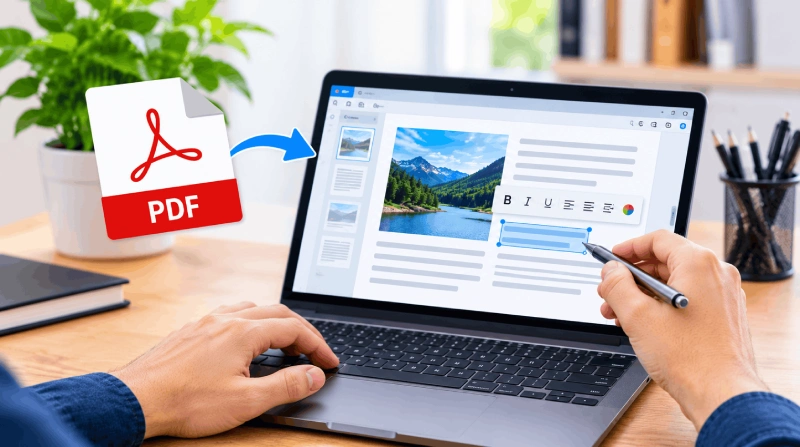
RevPDF.ai is one of the best online PDF editors in the business. It can help you edit your files without losing formatting. To use this editor, you don’t even need to convert your file first. Just open the tool, make adjustments to the file, and your edited file is ready.
The best thing about the tool is that it doesn’t just provide basic utilities but advanced ones as well. For instance, using the tool, you can change font, add or remove text, improve line and word spacing, align text, comment on the file, etc. In short, it’s a one-stop solution for all editing needs.
ILovePDF

ILovePDF is a popular platform for editing PDF files. Like RevPDF, it provides most essential features you need during editing. It also helps you convert files, add graphics, lock files, etc.
ILovePDF is also quite simple to use. You don’t need to install anything on your device. No matter what you want to do with a file, just open the platform, select the required tool, upload your PDF file there, and make adjustments according to your needs. Finally, review the file and download it.
SmallPDF

SmallPDF shares many similarities with ILovePDF. It also provides almost all the tools you need to edit your files. It provides an extensive selection of fonts and editing options that help you preserve the font style and formatting intact.
SmallPDF is also safe to use. You can even use it to edit your sensitive files using this PDF editor. The platform complies with the General Data Protection Regulation. So, your personal files remain personal and don’t reach unauthorized people at all.
- Convert PDF Files to Word
You can also edit your PDF files by converting them to an MS Word file. To do this, you just need an online PDF converter. This method works well when you have to make lots of adjustments to the file.
In an MS Word document, you can add images, charts, graphics, change fonts, improve formatting and line spacing, and much more. Once you edit the file, convert it back to PDF, and your file is ready.
- Use OCR Tools for Scanned PDFs
Not all the files are in text form. Some people deliberately capture pictures of the printed copies or scan them and compile PDFs with those images. In this case, the online PDF editors don’t provide much help. You need an OCR tool to convert those images to text and then edit those files. The results may vary depending on the image quality and text clarity.
Thankfully, the process is straightforward as well. Just follow these steps for scanned PDFs:
Use an OCR Tool to Extract Text
First, use an AI-powered OCR tool to extract text from the file. The tool can accurately extract all the words contained in the document. However, during the process, the formatting is lost. So, don’t worry about it.
Edit Text
Once you have the text, edit it to meet your requirements. To improve formatting, you might require additional effort. But in the end, you will have a properly formatted file on your desktop.
Formatting Tips for PDF Text
Match Original Font
Don’t choose any random font while editing a PDF file. Instead, recognize the exact font first and then use it for editing. If you don’t know which font it is, just take a screenshot and ask ChatGPT or Gemini about the font. Then, use that original font for editing. This small detail makes edited sections look more natural.
Keep Alignment
While editing, you need to be particularly careful about the alignment. Make sure to check existing margins and use the same margins during editing. If you change them, the entire layout might change.
Check Spacing
If you have to add a few sections or paragraphs to the file, monitor word gaps and line spacing. Then, use the same spacing during editing.
Review Layout
Finally, review the entire layout in the file and check if everything is correct. If anything looks incorrect, make sure to edit the file again. Never share the document unless it’s ready for sharing.
Conclusion
Editing PDF files, whether it’s text-based or scanned, is much easier. You just need the appropriate tools and methods for that. For text-based files, use online PDF editors. You can also convert the file to Word and edit it there. For scanned documents, use an OCR tool to extract words. Then, edit the file in an online editor or MS Word. During and after editing, make sure to keep the font, formatting, and spacing intact.