
Heading Tag Checker
Enter a public URL to extract every H1 to H6, review heading order and diagnostics, and export the results.
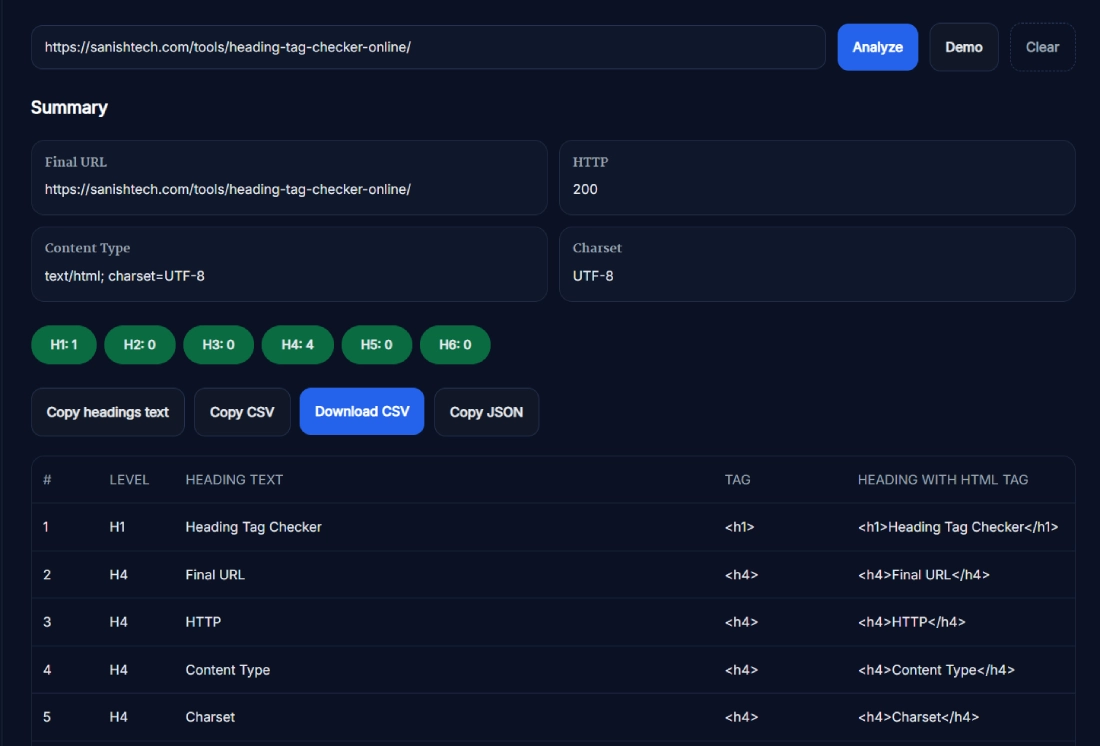
The Heading Tag Checker extracts every H1 to H6 element from a public webpage and lists them in document order. Enter a URL to review heading counts, text, levels, hierarchy warnings, the final URL and the page’s HTTP response.
You can copy the headings as text, CSV or JSON, or download a CSV report. The tool is useful for reviewing a single article, landing page, template or service page without manually searching through its HTML source.
What the Heading Tag Checker Analyzes
The checker fetches the supplied URL and examines the HTML returned by the website. It looks specifically for native heading elements from <h1> through <h6>.
For each successful analysis, the report can show:
- Final URL: The destination reached after any redirects.
- HTTP response: The status returned when the page was fetched.
- Content type: The response format reported by the website.
- Charset: The detected character encoding when available.
- Heading counts: Separate totals for H1 through H6.
- Document order: The sequence in which headings occur in the fetched HTML.
- Heading text: The readable text extracted from each element.
- Tag level: Whether each item is an H1, H2, H3, H4, H5 or H6.
- Reconstructed example: Simple markup such as
<h2>Example heading</h2>.
The reconstructed example is not the page’s exact original markup. Attributes, nested spans, links and other inner HTML are not preserved in that column.
How to Use the Heading Tag Checker Online
- Enter the webpage URL: Paste a complete public URL into the input field. The tool can add HTTPS when the protocol is omitted.
- Select Analyze: Wait while the page is fetched and its heading elements are extracted.
- Confirm the final URL: Check whether the requested page redirected to a different destination.
- Review the response: Check the HTTP status, content type and charset.
- Inspect the counts: Compare the number of H1 to H6 elements.
- Read headings in order: Look for unclear labels, unexpected levels or hierarchy jumps.
- Save the findings: Copy the text, CSV or JSON, or download the CSV report.
The Demo button loads a Wikipedia URL so you can see how the report works. Clear removes the current URL and results.
What the Heading Diagnostics Mean
The Heading Tag Checker applies a small set of SanishTech diagnostic rules to the fetched HTML.
- No H1 found: The report recommends adding a clear primary heading.
- Multiple H1 elements: The report suggests considering one primary H1.
- Skipped heading level: The report flags jumps such as H2 directly to H4.
- Non-200 response: The report warns that the returned page may differ from the intended page.
- Looks good: None of these programmed conditions were detected.
These messages are diagnostic guidance. They are not Google warnings, confirmed ranking factors or a complete accessibility assessment.
What Is a Logical Heading Structure?
Heading levels describe the relationship between sections. They should be selected for structure, not because of their default font size.
- H1: The main heading that identifies the page.
- H2: A primary section within the page.
- H3: A subsection belonging to an H2 section.
- H4: A subsection belonging to an H3 section.
- H5 and H6: Deeper levels used when the content genuinely needs them.
A page does not need to use every level. A short page might only require one H1 and a few H2 elements. The important part is that each level accurately represents the content relationship.
For example, this structure is easy to understand:
- H1: Beginner’s Guide to Indoor Gardening
- H2: Choosing Indoor Plants
- H3: Plants for Low-Light Rooms
- H3: Pet-Safe Indoor Plants
- H2: Watering and Plant Care
Is More Than One H1 Bad for SEO?
Having multiple H1 elements does not automatically cause a Google penalty. HTML can contain more than one H1, although using one descriptive primary H1 remains a clear and widely followed practice.
The real question is whether users and search engines can identify the page’s main topic. Several equally prominent headings can make that less clear. Google may also consider prominent headings when selecting title-link text for search results.
If you need to find missing or multiple H1 elements across a list of URLs, use the Bulk H1 Checker Online. The current Heading Tag Checker processes one page at a time.
Why Skipped Heading Levels Are Flagged
A jump from H2 to H4 may suggest that a structural level is missing. This can make the page outline harder to understand, particularly for people navigating by headings with assistive technology.
Not every unusual sequence is automatically wrong. Review the content relationship before changing it. If an H4 genuinely belongs under an H3, add or restore the missing H3. If the element was chosen only for its appearance, keep the correct heading level and change its size with CSS.
Why Results May Differ From the Visible Page
The tool analyses the HTML fetched from the server. It does not run the page like a full browser and wait for every JavaScript component to render.
As a result, headings may be absent when they are:
- Inserted after page load with JavaScript.
- Displayed only after an interactive action.
- Located behind a login or access restriction.
- Blocked by a security or bot-protection page.
- Created with an ARIA heading role instead of an H1 to H6 element.
The checker can still report the server’s final URL and response details. For checking many response codes separately, use the Bulk HTTP Status Checker.
Frequently Asked Questions
What does the Heading Tag Checker analyze?
It fetches a public webpage and extracts native H1 to H6 elements from the returned server-side HTML. It reports the final URL, HTTP status, content type, charset, heading counts, document order, heading text and tag level.
Which heading problems does the tool flag?
It flags pages with no H1, more than one H1, a jump of more than one heading level, or a non-200 HTTP response. These are SanishTech diagnostic recommendations, not Google penalties or a complete accessibility audit.
Does the report show the exact original heading HTML?
No. The report extracts the heading text and reconstructs a simple example such as <h2>Heading text</h2>. It does not preserve original attributes, links, spans or other nested markup.
Can I export the heading results?
Yes. You can copy the headings as plain text, copy CSV, download a CSV file or copy the complete JSON result after a successful analysis.
Can the tool check multiple URLs at once?
No. The Heading Tag Checker analyses one URL per run. Use a dedicated bulk checker when you need to review H1 usage across multiple pages.
Why are some visible headings missing from the report?
The tool analyses fetched server-side HTML and may not capture headings added later with JavaScript. It also checks native H1 to H6 elements, not elements that only use an ARIA heading role.
How many H1 tags should a webpage have?
HTML can contain more than one H1, but one clear H1 that identifies the page is a widely used best practice. Multiple H1 elements do not automatically cause a Google penalty.
Should heading levels always be used in order?
Heading levels should reflect the relationship between sections. Avoid skipping a level when it creates an unclear outline, such as moving from H2 directly to H4 without an H3 section.
Do heading tags improve Google rankings?
Headings can help users and search engines understand a page’s topic and structure, but changing heading tags alone does not guarantee higher rankings, traffic or featured snippets.
What is the ideal heading structure for SEO and accessibility?
Use a descriptive H1 for the page, H2 elements for its main sections and deeper levels for genuine subsections. The structure should follow the meaning of the content rather than the visual size you want.